Ergonomic home office for beginners: the honest starter guide
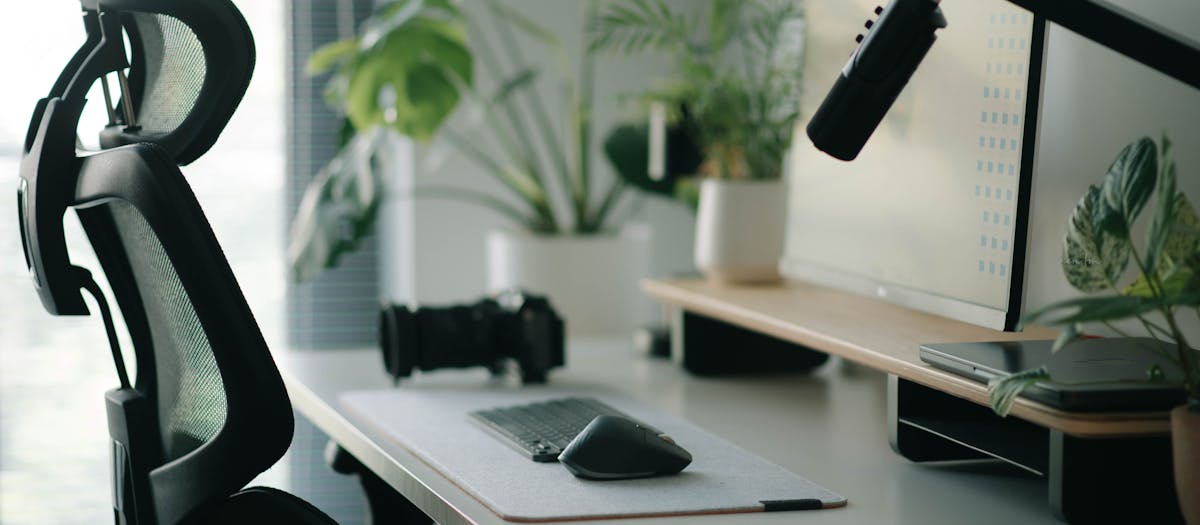
Building an ergonomic home office is not complicated, but it is full of small decisions that compound if you get them wrong. A workable first build runs about $500 — chair, desk, monitor arm, light bar, chair mat. Picking the wrong chair or the wrong desk height is the most expensive mistake first-year remote workers make, because both shape how every other piece of the setup performs.
This page walks every decision in the order it actually matters: the four pillars (chair, desk, monitor, accessories), how to spend by budget tier, what the order to buy in looks like, and the rookie mistakes worth skipping. By the end you will know what to buy, in what order, and what you can skip.
A quick note before we start. When I rebuilt my own setup after six weeks of physiotherapy and a chiropractor visit, the lesson sat there in plain view — my chair was too soft, my desk was 3 inches too high, and my monitor was 5 inches too low. Three fixes, a long weekend, and most of the lower-back issue was gone in a month. Most of the advice below comes from getting one of those three things wrong on my own desk first. If you are already partway through a setup and you are here for a specific guide, jump to the silo that applies. If you are at the planning stage, read top to bottom.
Before you buy anything (the four checks)
Four things to settle before money changes hands. Skip these and you risk a setup that cannot deliver what you imagined, or gear that sits unused while you wait on replacement pieces.
Pick the use case honestly
"Home office" covers everything from full-time remote work to two days a week of laptop shifts at the kitchen table. The right setup depends on the hours. If you work from home eight hours a day, five days a week, you want the same chair quality a corporate office buys. If you work from home one day a week and a laptop on the couch, a $250 setup is genuinely enough. Be honest about which one you are.
Pick the spot
Setup placement decides more than you think. The right spot has:
- A door or a divider — anything that lets you stop working at the end of the day.
- Natural light from the side, not behind or in front of the monitor.
- Wall space behind the desk for a monitor arm to clamp to.
- Reasonable distance to a power outlet — a 15-amp outlet for the desk and monitors.
- Floor that the chair can roll on, or budget for a chair mat.
The "I will move it later" plan rarely works. A desk plus a chair plus a monitor arm is surprisingly heavy and finicky to relocate. Assume the first spot is the spot for at least a year.
Time at the desk
Daily: 6 to 8 hours for full-time remote workers; 2 to 4 for hybrid; an hour or two for personal use. The higher number drives the budget allocation — at 8 hours a day in a chair, the chair is the most expensive single thing you sit on outside a car.
Budget honestly
Three reference tiers worth aiming at:
- $500 entry build — sub-$250 ergonomic chair, standing-desk converter or fixed desk, single monitor arm, light bar, chair mat. The full bundle is covered on the complete $500 home-office setup page.
- $1,000 mid build — better chair (sub-$500 commercial), electric standing desk, monitor arm, light bar, chair mat, plus a vertical mouse or split keyboard.
- $2,000 long-term build — commercial-grade chair (Steelcase Leap, Herman Miller Aeron), electric standing desk with memory presets, monitor arm and screen-bar light, mechanical or ergonomic keyboard, and a real desk lamp.
The short version: Allocate 40 to 50 percent of the budget to the chair, 25 to 30 percent to the desk, 10 to 15 percent to monitor support, and the remainder to accessories and lighting. Most rookies invert this — spending big on the desk and under-spending on the chair, which is exactly backwards.
The chair (40–50% of budget)
The chair is the biggest single decision and the one that decides whether the rest of the setup works. Lumbar support, seat-pan dimensions, recline tension and armrest range determine whether you can sit through a work day without compensating with your spine.
Lumbar support — adjustable beats fixed
The lumbar pad on a chair should be both height-adjustable (so it sits at your lumbar curve, not someone else's) and depth-adjustable (so it pushes into the lumbar at the right pressure). Fixed lumbar that "averages" the population fits no one perfectly. Sub-$250 chairs usually offer height-only adjustment; $400+ chairs offer both. The depth adjustment is the one most often missed — and the one that matters most for back-pain readers.
Seat-pan depth — 15 to 18 inches
The distance from the backrest to the front edge of the seat. Too short and your thighs hang off the front; too long and the front edge presses into the back of your knees, cutting circulation. A seat-pan that slides forward and back (15 to 18 inches of adjustment range) fits a wide range of body sizes. Most fixed-depth chairs land around 17 inches — fine for average adults, short for anyone above 5'10".
Recline tension and lock
The chair should recline smoothly with body weight and lock at one or more positions. A stiff recline forces you to fight the chair; a loose recline dumps you backward when you shift. Look for weight-activated tilt (calibrates to your body weight) or a clearly labelled tension knob with a wide adjustment range. A multi-position lock is the back-pain-friendly choice — many readers settle into a slight recline (about 10 to 15 degrees) for most of the work day.
Armrests — 4D where you can
Armrests should adjust in height, width, depth and pivot — what the industry calls "4D." The width and pivot adjustments are the ones that let armrests actually support your forearms over the desk, which is the point. Fixed armrests force one of two compromises: either your elbows hang off, or you raise your shoulders to clear them.
The desk (25–30% of budget)
The desk is the second decision. Height, depth, surface area and stability decide whether the rest of the setup sits at the right level and whether the surface holds up under load.
Sit-stand or fixed
A sit-stand desk lets you mix posture across the day, which is genuinely useful for circulation and lower-back load. An electric sit-stand at the entry tier runs $300 to $500; a fixed desk at the same surface quality runs $150 to $250. If the budget is tight, a fixed desk plus the habit of standing every 30 to 45 minutes (timer or stand-up reminder) delivers most of the benefit. A standing-desk converter is the cheapest path into sit-stand if you already own a desk you like.
Height range — make sure it fits you
For seated work, the desk should sit at about elbow height with your shoulders relaxed — roughly 28 to 30 inches for most adults. For standing, the desk should sit at elbow height while standing — roughly 38 to 45 inches depending on user height. A sit-stand desk should cover both ranges. Many budget desks bottom out at 28 to 29 inches, which is too high for anyone under 5'5"; many top out at 47 inches, which is too low for anyone over 6'2". Check the height range against your actual measurements.
Load capacity
A typical setup — a 27-inch monitor, monitor arm, keyboard, mouse, laptop, light bar, cables — adds up to about 25 to 40 pounds. A budget desk rated for 154 pounds is fine; a heavy-duty triple-monitor setup with a vertical-mounted ultrawide can exceed 80 pounds, which is where the higher-end frames pay off. Always check the load rating on the manufacturer page, not just the listing photo.
Desktop dimensions
A 48 × 24-inch top fits a single 27-inch monitor with a comfortable keyboard zone. A 55 × 28-inch top fits dual monitors or an ultrawide. Anything smaller than 40 × 22 forces the keyboard too close to the monitor, which is the most common cause of forward head posture.
The monitor and monitor arm (10–15% of budget)
Monitor height is the single most-missed ergonomic adjustment. The top of the screen should sit roughly at eye level when you are seated upright. For most adults that means lifting the monitor 4 to 6 inches above a typical desk surface — which means the monitor stand a 27-inch screen ships with is too low for almost everyone.
Monitor arm vs riser vs stack of books
A monitor arm is the right answer if you use a standing desk (because the height needs to change), if you have two or more monitors, or if you want to free up the desk surface under the screen. A fixed riser works for a single screen on a fixed desk. A stack of books technically works at zero cost; it loses the height-on-demand and depth-adjustment benefits. For a working remote setup, a $45 gas-spring arm is genuinely worth the spend.
VESA pattern
Monitor arms attach to a standard mounting pattern on the back of the screen — most commonly 75 × 75 mm or 100 × 100 mm. Almost every modern monitor supports one or both. Some ultrawide and 32-inch monitors use 200 × 100 mm — check the spec sheet before ordering an arm. The accessories silo covers VESA sizing in detail.
Single, dual or ultrawide
One 27-inch monitor is the right answer for most knowledge workers — enough screen for two windows side by side, simple to position ergonomically. A second 24 or 27-inch monitor adds real productivity for development, design, finance work. An ultrawide (34 or 49 inch) replaces dual monitors at the cost of one heavier piece that is harder to position. Avoid vertical monitor stacking unless your job genuinely demands it — the upper screen forces neck extension that nothing else in the setup can correct.
Accessories and lighting (15–20% of budget)
The category that gets dismissed and shouldn't. Chair mat, light bar, footrest, wrist rests and a cable kit add up to about 15 to 20 percent of a typical build — and they fix the ergonomic issues the chair and desk leave behind.
Chair mat
Rolling a chair on carpet drags the wheels, adds work for your back, and wears tracks into the carpet pile. A chair mat fixes both. On hardwood it extends the floor life and stops the cast wheels from leaving compression marks. Pick mat thickness to carpet pile — low pile takes a thin PVC mat, plush carpet takes a 0.25-inch heavy mat or a glass mat. The chair mat for carpet guide walks every variant.
Lighting — light bar over ceiling fixture
A monitor light bar clips to the top of the screen and lights the desk surface without throwing glare onto the display. The cheaper alternative to a real desk lamp; the better alternative to working under a ceiling fixture. Most desk lamps cast light onto the screen as well as the desk, which is the opposite of what you want.
Footrest if you are under 5'7"
A desk set to your elbow height usually leaves shorter users' feet dangling, which puts load on the back of the thighs and adds to back fatigue by day-end. A $25 adjustable footrest closes the gap. Skip the footrest if your feet sit flat on the floor at your working desk height.
Wrist rests and keyboard tray
Wrists should sit straight, not bent up to reach the keyboard or down toward the mouse. A memory-foam wrist rest pair (about $15) holds the position for traditional keyboards. A keyboard tray that mounts under the desk lets you set the keyboard 1 to 2 inches lower than the desk surface — useful if your desk minimum height is 29 inches or higher and you are under 5'8".
Cable management
Not strictly ergonomic, but a setup that looks like a wiring closet is a setup you avoid using. Fifteen dollars in trays and ties is the difference between a workspace you want to be at and one you eventually abandon for the kitchen table.
How to spend your first $500, $1,000 or $2,000
Three reference budgets, with the same priority order: chair first, then desk, then monitor, then accessories.
$500 — the entry build
- Chair — sub-$250 ergonomic with adjustable lumbar height (Sihoo, HBADA, Branch Ergonomic Chair).
- Desk — $140 standing-desk converter on an existing desk, or a $180 fixed wooden desk.
- Monitor arm — $45 single-monitor gas-spring arm.
- Light bar — $45 monitor light bar.
- Chair mat — $40 mid-thickness PVC on low-to-medium pile carpet.
- Footrest or wrist rest — $25.
Total: roughly $500. The full bundle and the click-each-component flow is on the complete $500 home-office setup page.
$1,000 — the mid build
- Chair — $400 to $500 mid-tier ergonomic (Autonomous ErgoChair Pro, Branch Verve, Steelcase Series 1).
- Desk — $350 electric sit-stand (Flexispot E5 or VIVO with memory presets).
- Monitor arm — $60 gas-spring single or $120 dual.
- Light bar — $80 (Quntis or BenQ ScreenBar Halo budget).
- Chair mat — $50 polycarbonate.
- Vertical mouse or split keyboard — $60.
Total: roughly $1,000.
$2,000 — the long-term build
- Chair — $700 to $1,100 commercial-grade (Steelcase Leap V2 refurb, Herman Miller Aeron Size B refurb, or a new Leap on sale).
- Desk — $600 Uplift V2 or Jarvis with bamboo top and memory presets.
- Monitor arm — $200 (Ergotron HX or LX dual).
- Light bar — $120 BenQ ScreenBar Halo.
- Chair mat — $200 tempered glass.
- Keyboard, mouse, footrest — $200 (Logitech MX Vertical, mechanical or split keyboard, adjustable footrest).
Total: roughly $2,000. Most of this gear lasts 10 to 15 years, so the annualised cost is closer to a streaming subscription than an annual purchase.
The order to buy in
Buy in this order. Skipping ahead is the most common mistake.
- Chair first. Sit in it for two weeks before buying anything else. If pain points emerge, return and try a different chair before the larger spend.
- Desk second. Size to your seated and standing elbow height, not to the desk's marketing.
- Monitor arm third. Lift the screen to eye level. Most ergonomic complaints in week three trace back to this step being skipped.
- Accessories last. Chair mat, light bar, footrest, wrist rests, cable kit — in any order, as budget allows.
Common rookie mistakes
1. Spending the chair budget on the desk
A $400 desk plus a $100 chair is exactly the wrong allocation. A $100 chair under-supports the back, regardless of how nice the desk looks. Flip the proportions: $250 chair, $180 desk, and you have a setup that works.
2. Ignoring monitor height
The most common ergonomic miss. A 27-inch monitor on the stand it ships with sits about 4 to 6 inches too low for most adults. Forward head posture and chronic neck tension follow within weeks. Either a monitor arm or a fixed riser fixes this for under $50.
3. Buying a sit-stand desk and never standing
A sit-stand desk that stays in the seated position for six months is a fixed desk that cost twice as much. If you do not have the habit of switching posture, build the habit first (timer or sticky note) and prove it sticks before paying for the variable height.
4. Treating ergonomic gear as a treatment for clinical pain
A good chair helps with ergonomic discomfort. It does not treat sciatica, herniated discs, or pinched nerves. Pain that persists after two weeks of corrected setup is a clinical issue — see a physiotherapist, chiropractor or your GP. Frame the chair as preventive ergonomics, not medical equipment.
5. Skipping the chair mat on carpet
Rolling a chair on carpet shortens the chair's life, ruins the carpet, and adds enough friction that your back muscles work harder to move the chair around. A $40 mat solves all three for almost no money.
6. Working under a ceiling fixture only
Overhead-only lighting throws glare onto the monitor and washes out detail. A monitor light bar or a side-positioned desk lamp evens the light field and reduces eye strain. The light fix is one of the cheapest in the whole stack.
7. Trying to fix back pain with a kneeling chair or balance ball
Both are useful as posture-switching tools for 20 to 30 minutes at a time. Neither is a primary chair. Reddit threads recommending an 8-hour balance-ball workday are how otherwise-fine backs end up at the physiotherapist.
What to read next
The four silos pick up from here.
Frequently asked questions
What is the most important piece of an ergonomic home office?
The chair. A chair you sit in for six to eight hours a day decides whether the rest of the setup works or not. Spend the largest single share of your budget here — 40 to 50 percent. Desk, monitor and accessories all support what the chair sets up; none of them fix a bad chair.
Do I need a standing desk for a healthy home office?
Not necessarily. A fixed desk at the right height, paired with an ergonomic chair and the habit of standing every 30 to 45 minutes, delivers most of the benefit. Standing desks add the option to mix posture across the day, which is genuinely useful — but a sit-stand desk on top of a bad chair does not fix the chair.
How much should I spend on a first ergonomic home office?
A workable budget lands around $500. That covers a sub-$250 ergonomic chair, a standing-desk converter or fixed desk, a monitor arm, a light bar, and a chair mat. $1,000 doubles the chair-and-desk quality and adds a real desk lamp. $2,000 buys commercial-grade gear that lasts a decade-plus.
What is the right monitor height for an ergonomic setup?
The top of the screen sits roughly at or just below eye level when you are seated upright. For most adults that means raising the monitor 4 to 6 inches above a typical desk surface. A monitor arm or a stack of books both work; the arm gives you the height-on-demand benefit when you switch between sitting and standing.
How do I know if my desk is the right height?
Sit with your feet flat on the floor, knees at about 90 degrees, and elbows at your sides bent to roughly 90 degrees. Your forearms should be parallel to the floor and your wrists straight when typing. A desk that forces you to lift your shoulders or bend your wrists up is too high; a desk that forces you to slouch is too low.
Is a kneeling chair or balance ball a good ergonomic alternative?
For short stretches, sometimes — both engage core muscles and shift posture. Neither is suitable as a full-time sit-eight-hours-a-day chair. A standard ergonomic chair plus 30 to 45 minutes of standing per hour delivers more, with less day-end fatigue. Use a kneeling chair or ball as a posture-switching tool, not a primary seat.
What about back pain that started after working from home?
Common, fixable, and not something to self-diagnose. Start with the ergonomic basics — chair fit, monitor height, breaks every 30 to 45 minutes. If pain persists after two weeks of corrected setup, see a physiotherapist, chiropractor or your GP. Most desk-related back pain responds to ergonomics plus movement; clinical pain needs clinical care.
Do I really need a monitor arm or a chair mat?
A monitor arm: yes for most people, because monitor height is the single most-missed ergonomic adjustment. A chair mat: depends on the floor — carpet always benefits, hardwood is optional but extends floor life. Both fall in the cheapest 10 percent of the budget and deliver outsized return.
Should I buy ergonomic gear all at once or piece by piece?
Piece by piece, in this order: chair first, then desk, then monitor and arm, then accessories. Spending the chair budget on a desk first is the most common buying mistake. Buy what you can afford in the chair tier rather than spreading the same money across more components.
Can I just use kitchen chairs and a folding table for a while?
For a week or two, yes. For longer than that, no — even a $200 ergonomic chair and a real desk surface beats kitchen furniture for back, neck and wrist outcomes. The longer you sit in a non-ergonomic setup, the harder pain patterns are to undo. Cheap-but-correct beats free-but-wrong.